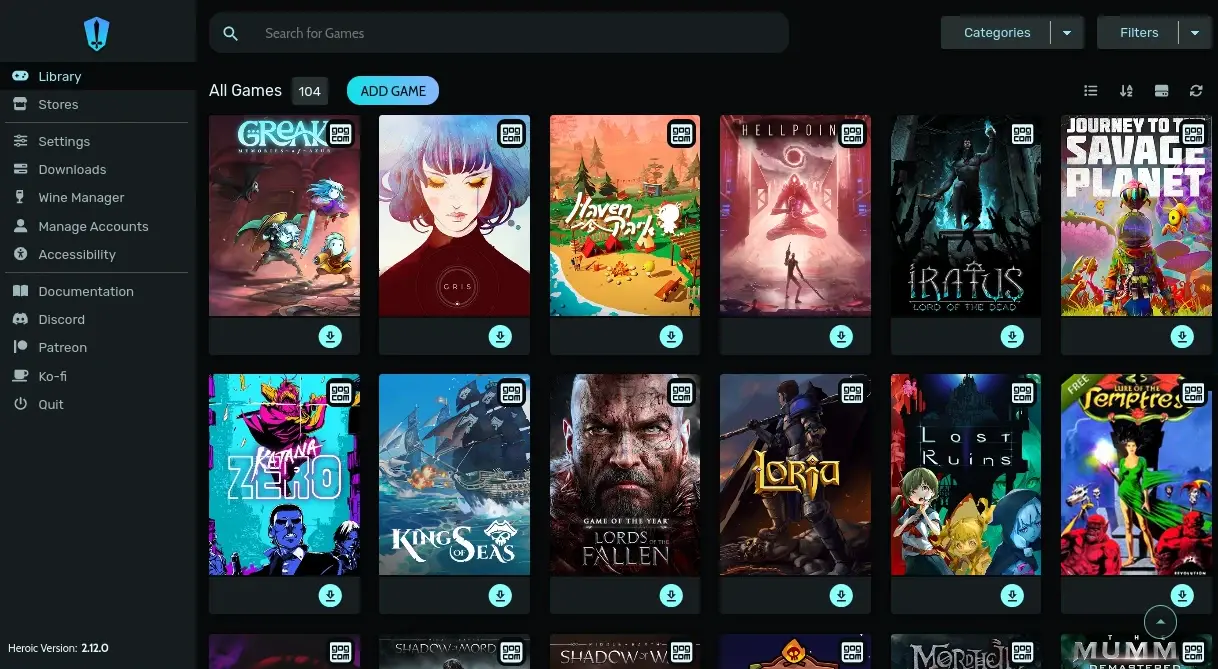


The Steam Deck revolutionized how we play PC games, bringing portability to massive libraries. However, those who own games on the Epic Games Store, GOG, or Amazon Prime Gaming know that accessing them outside the Valve ecosystem can be a challenge. This is where the **Heroic Games Launcher Steam Deck** comes in.
In this definitive and updated guide, we will show you not only how to install but how to configure this tool to extract the **best performance**, save battery life, and ensure your games run as well as native Steam titles.
## Why use the Heroic Games Launcher on the Steam Deck?
Many users try to install the official launchers (like the Epic Games Launcher) directly via Wine. The problem? These programs are heavy, consume a lot of RAM, and drain the Deck's battery just by being open in the background.
The **Heroic Games Launcher** solves this with a different philosophy:
1. **Lightweight and Open Source:** It functions as a native interface for ultra-efficient command-line tools (Legendary and Nile).
2. **Resource Saving:** When the game starts, Heroic can close or suspend itself, freeing up all the Steam Deck's hardware for what matters: the game.
3. **Centralized Management:** Access to Epic, GOG, and Amazon in a single place.
If you want to transform your device into a universal gaming hub, configuring the **Heroic Games Launcher Steam Deck** correctly is the most important step.
## Step 1: Installation and Integration (Desktop Mode)
Since SteamOS has an immutable file system, the best way to install Heroic is through Flatpaks. Follow the step-by-step guide:
1. Press the Steam button, go to **Power**, and select **Switch to Desktop**.
2. Open the **Discover** store (the blue bag icon on the taskbar).
3. Search for "Heroic Games Launcher".
4. Click **Install**.
### Golden Tip: SD Card Permissions (Flatseal)
By default, Flatpak applications do not have permission to access your microSD card. To install games on the card:
1. Still in the Discover store, install the **Flatseal** app.
2. Open Flatseal, select Heroic Games Launcher from the side list.
3. In the "Filesystem" section, activate the **All user files** option or manually add the path to your SD card (/run/media/mmcblk0p1).
## Step 2: Optimization for Best Performance
Here lies the secret to making the **Heroic Games Launcher Steam Deck** shine. The default configuration works, but to avoid stutters and ensure compatibility with videos and cutscenes, we need to adjust **Wine/Proton**.
### Install GE-Proton
The default version of Valve's Proton sometimes lacks proprietary codecs necessary for games from other stores.
1. In Heroic, click **Wine Manager** on the sidebar.
2. Select the **Proton-GE** option and download the "Latest" version.
### Recommended Global Configuration
Go to **Settings > Game Defaults** and apply these settings as a base for your entire library:
* **Wine Version:** Select the GE-Proton you just downloaded.
* **Enable DXVK / VKD3D:** Keep enabled (essential for translating DirectX to Vulkan).
* **Esync / Fsync:** Keep enabled (the SteamOS kernel is optimized for this, reducing CPU latency).
These adjustments ensure the game uses the most efficient compatibility layers, resulting in more stable FPS and lower CPU usage.
## Step 3: Login and Cloud Saves
When logging into **Epic Games**, **GOG**, or **Amazon**, Heroic will try to synchronize your saves automatically.
* **Epic Games:** If you have trouble with CAPTCHA on direct login, use the "Alternative Login" (Sideloader) option. Copy the token generated in the browser and paste it into Heroic.
* **Cloud Saves:** Before closing Heroic, always check the "Save Sync" section. Sometimes conflicts can occur, and Heroic will ask if you want to download the save from the cloud (Download) or upload the local one (Upload).
> **Attention:** Amazon frequently changes its API. If your Amazon library disappears, go to *Settings > Advanced* and clear the Amazon/Nile cache to force a new login.
## Step 4: Integration with Game Mode ("Add to Steam")
You don't want to switch back to Desktop every time you want to play. Heroic makes this easy:
1. Install the desired game.
2. In the Heroic library, click on the game cover or the three dots.
3. Select **Add to Steam**.
4. Restart the Steam Deck or return to **Gaming Mode**.
The game will appear in the "Non-Steam Games" tab.
### Improving Aesthetics (Covers and Art)
Manually added games appear without an image (that ugly gray square). To fix this:
* **Native Option:** In Heroic's settings, enter your API key from the **SteamGridDB** website. Heroic will download the covers automatically.
* **Decky Loader Option:** If you use Decky Loader, install the SteamGridDB plugin. In game mode, just press the menu button over the game and select "Change Artwork".
## Troubleshooting Common Issues
Even with the best **Heroic Games Launcher Steam Deck** configuration, problems can arise. Here is how to fix them:
### The controller doesn't work in the game
This happens due to a conflict between Steam and the Flatpak.
* **Solution:** In Game Mode, go to the game's properties (gear icon) > Controller. Disable **Steam Input** or force the "Gamepad with Joystick Trackpad" template. This allows the game to "see" the controller directly.
### Game doesn't start (returns to the menu)
This is usually due to missing Windows dependencies (C++, .NET).
* **Solution:** In Heroic, go to the specific game's settings, click **Winetricks**, and install the necessary libraries, or try a different version of Proton-GE.
## Conclusion
The **Heroic Games Launcher Steam Deck** is undoubtedly the most powerful tool to free your game library. With it, you get superior performance compared to official launchers, maintain your privacy, and organize your Epic, GOG, and Amazon games in a clean interface.
By following this optimization guide, your Deck will be ready to run any title, no matter where you bought it.
*Did you like the tips? Do you have a specific game that runs better on Heroic than on Steam? Leave your comment below!*
Veja mais artigos como Heroic Games Launcher Steam Deck: How to Configure for Best Performance na categoria Steam Deck.
Cyberpunk 2077 Eclipse Mod Steam Deck: 60FPS and 4K Without Stuttering

Steam Deck Eclipse Mod: What It Is, How to Use It, and Which Games Are Compatible

Starfield Steam Deck Performance: Eclipse Mod + Best Settings

Does Lost Soul Aside Run Well on Steam Deck? The Definitive Setup Guide

ARC Riders Steam Deck: How it Runs and Best Settings